(Last updated October 20, 2013)
Now you can disable your Windows key in Windows... without any special software, and without having to pry the key off with a screwdriver. Read on to find out how. I also have a page on how to disable/alter the Caps Lock key.
Background
Accidentally hitting the Windows key while in the middle of playing a game can be maddening, and will most likely get you killed mid-game. Now, you can disable it by modifying the windows registry. I decided to add some .REG files so you can disable your Windows key yourself without needing to muck around with the registry.
Compatibility
This method of disabling the Windows key works with all modern Windows variants: Windows 2000, XP, Vista, 7, 8/8.1. It will not work with Windows 95/98/Me. As with any HKLM registry changes, you'll need administrator priviledges to make them.
Warnings
- These files are provided without warranty. Use them at your own risk.
- These files will overwrite any keyboard mappings you currently have.
- .REG files update your Windows registry. Incorrect changes to the registry may damage Windows or other installed software. Be sure you know what a given .REG file contains before merging it into the registry.
Installation / Files
The following files are .reg files. They modify the Windows registry directly. You should download them to your PC (right-click the link and select to Save As or similar). Be sure they save as a .reg file and not as .reg.txt. (If they save as a .reg.txt, just rename them. You may have to disable Windows 'helpfully' hiding extensions.) Next, double-click them to add them to your registry. After saying YES to the message box, reboot your machine and enjoy freedom from Windows key-induced loss of life annoyances.
- Disable left Windows key: disable_left_windows_key.reg
- Disable right Windows key: disable_right_windows_key.reg
- Disable both Windows keys: disable_both_windows_keys.reg
- Disable Caps Lock and both Windows keys: disable_caps_lock_and_both_windows_keys.reg
- UNINSTALL: Restore Windows keys: remove_scancode_mappings.reg (Removes all scancode mappings)
Note: You can't select an option from here and an option from disabling/altering the Caps Lock key as the mappings will overwrite each other. I've provided a combined file to disable caps lock and the Windows keys above.
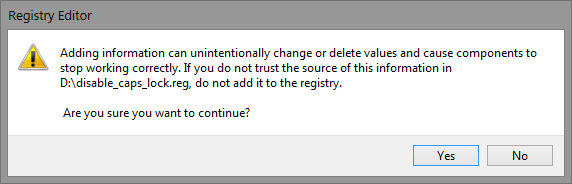
The confirmation message you'll see when opening a .REG file.